Mastering Relational Database Queries and Mail Merge Formulas in Edexcel IGCSE ICT Paper 2
By EdFlik Team | November 20, 2026
For Key Stage 4 students across Dubai, Abu Dhabi, Sharjah, and the Northern Emirates enrolled in Pearson Edexcel International GCSE ICT (4IT1), Paper 2 (Practical Skills) is a decisive test of speed, accuracy, and software precision. Worth 50% of the total qualification and lasting 3 hours, Paper 2 requires candidates to work directly with real data files and software tools—typically including word processing, spreadsheets, databases, presentations, and mail merge—under strict time pressure.
Two of the most reliable high-mark tasks on Edexcel IGCSE ICT Paper 2 are relational database queries and mail merge documents with conditional logic/formulas. When executed cleanly, these tasks reward students with straightforward marks for exact filtering, calculated fields, proper report formatting, and error-free field insertion. However, under exam conditions, even tiny syntax slips—such as confusing AND with OR, forgetting # or " delimiters around dates or text, linking the wrong key fields between tables, or leaving unmerged placeholder text in a final document—can quietly chip away at a Grade 8 or 9 ($A^*$).
Securing top marks in Edexcel 4IT1 Paper 2 is all about repeatable verification habits: checking relationships before building queries, testing criteria logic against sample records, and previewing every single merged record before exporting or printing evidence.
This masterclass guide breaks down how to design and troubleshoot relational database queries and mail merge fields/conditional rules for Edexcel IGCSE ICT Paper 2, provides practical reference tables and worked walkthroughs, highlights common exam traps, and includes 100% copy-paste JSON-LD schema markup.
Key Takeaways
- Verify Keys and Relationships Before Writing Any Query: In a relational database, linking tables via the matching Primary Key and Foreign Key prevents duplicate or missing records when pulling fields from two tables into one query or report.
- Test Compound Criteria (
ANDvs.OR) Carefully: UseANDwhen every condition must be true at once; useORwhen meeting any listed condition qualifies a record—and use parentheses when mixingANDandORso criteria don't misfire. - Watch Data Types When Entering Query Criteria: Text values usually require quotation marks (e.g.,
"UAE"or"Confirmed"), date values often require date delimiters or exact date formatting depending on the DBMS, and numeric or Boolean (Yes/NoorTrue/False) fields follow their own syntax rules. - Check Both Field Codes and Merged Results in Mail Merge: Ensure every requested merge field and conditional rule (such as an
IF...THEN...ELSErule) is inserted from the data source rather than typed manually, and verify that spacing, punctuation, and line breaks remain clean across all merged records.
Part 1: Relational Database Queries in Edexcel IGCSE ICT Paper 2
In ICT Paper 2 database tasks, you are typically given two or more related tables—such as Students and ExamEntries, or Customers and Bookings—and asked to create queries, calculated fields, summaries, and formatted reports.
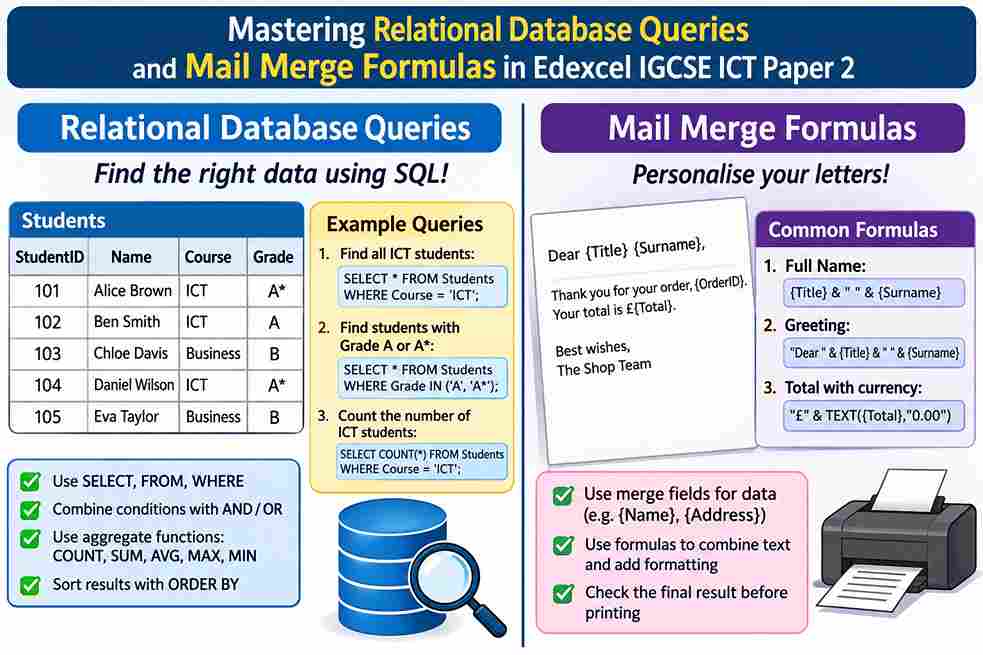
As shown in the relational schema diagram above, a Primary Key uniquely identifies each record in its home table, while a Foreign Key in a related table links back to that primary key—allowing a query to combine data across tables without duplicating core details.
Core Query Building Blocks in Paper 2:
- Table & Field Selection: Pull only the fields required by the brief (and in the requested order) so your query output stays clean and focused.
- Search Criteria (Filters): Restrict records using comparison operators (
=,<>,<,<=,>,>=), wildcards (such as*for matching character sequences), or logical operators (AND,OR,NOT). - Calculated Fields: Create new computed fields in the query—such as multiplying price by quantity (
[UnitPrice] * [Quantity]), calculating days/duration, or applying a discount rate—using exact field names in square brackets where required by your database software. - Sorting & Grouping/Totals: Sort ascending or descending on specified fields, or group records to calculate totals, counts, or averages when building summary reports.
Part 2: Query Criteria & Operator Reference Table
Use this quick reference to translate plain-English exam instructions into exact query filter logic:
| Exam Requirement | Logic / Operator Pattern | Example Criterion | What It Matches |
| Exact text match | = with text string | "Dubai" | Records where the field is exactly Dubai (case-insensitive in most desktop databases). |
| Exclude a value | <> (or Not ...) | <> "Cancelled" | All records except those marked Cancelled. |
| Both conditions true | AND | > 70 AND "Pass" (on respective fields) | Records that satisfy every condition simultaneously. |
| Either condition true | OR | "IGCSE" OR "A-Level" | Records that match at least one of the listed values. |
| Range of numbers or dates | >= and <= (or Between ... And ...) | >= 50 And <= 80 | Inclusive values from 50 through 80 (check whether endpoints are included!). |
| Starts with / contains text | Wildcard match (e.g., Like "Bio*") | Like "Math*" | Entries starting with Math (such as Maths or Mathematics). |
Walkthrough Example: Multi-Table Query & Calculated Field
Suppose a school registration database has:
Courses(CourseCode[Primary Key],CourseName,FeeAED)Enrolments(EnrolmentID[Primary Key],CourseCode[Foreign Key],StudentName,DiscountRate,Status)
If the exam asks for all confirmed enrolments where DiscountRate is greater than 0 and Status is "Confirmed", showing StudentName, CourseName, and a calculated NetFee field:
- Link
Courses.CourseCodetoEnrolments.CourseCode. - Set
Statuscriterion to"Confirmed"andDiscountRatecriterion to> 0. - Add calculated field
NetFee: [FeeAED] * (1 - [DiscountRate])(adjusting percentage formatting to match howDiscountRateis stored in the table—e.g.,0.1vs10). - Double-check that
NetFeedisplays with clear currency/decimal formatting and no#Erroror#Name?values.
Part 3: Mail Merge Fields and Conditional Formulas in Paper 2
Mail merge tasks on Paper 2 combine a master document (such as an exam timetable letter, invoice, or parent update) with a data source (such as a spreadsheet, CSV, or database table/query).
As illustrated in the mail merge diagram above, merge fields pull dynamic values directly from your data source into designated placeholders in the document template before generating personalized outputs [image_agent_tag_5774811682039392012]
Common Mail Merge Elements Tested in Edexcel 4IT1:
- Standard Merge Fields: Insert fields straight from the Insert Merge Field menu (such as
«First_Name»,«Exam_Date», or«Seat_Number») rather than typing angle brackets by hand. - Conditional (
IF...THEN...ELSE) Rules: Many Paper 2 briefs ask you to insert conditional text based on a field value—for example:- If
Balance_Dueis greater than0, display"Please settle the remaining balance before registration."; otherwise display"Your registration is paid in full." - If
Exam_Tierequals"Extended", display"Paper 2 & Paper 4"; otherwise display"Paper 1 & Paper 3".
- If
- Number, Currency, and Date Formatting: Field switches or source formatting ensure values appear cleanly (e.g.,
AED 450.00or20 November 2026) rather than raw unformatted numbers or US-style dates if UK/local formatting is specified. - Evidence Screenshots & Outputs: Paper 2 frequently asks for evidence of field codes/rules (showing the underlying
IFstructure or merge field names) as well as merged results (showing actual populated data for specific records).
Part 4: Step-by-Step Exam Workflow for Database & Mail Merge Tasks
To move smoothly through both sections without losing time on avoidable rework, use this sequence:
                 PAPER 2 EXECUTION CHECKLIST (DB + MAIL MERGE)
                                     |
  Step 1: Inspect Data First        ---> Check field names, data types, & sample records before
                                         building queries or linking a mail merge source.
  Step 2: Build & Test Query Logic  ---> Verify record counts & edge cases (exact boundaries,
                                         blanks, text casing) in Datasheet/Query view.
  Step 3: Format Output Cleanly     ---> Check column widths, alignment, decimals, & report
                                         headings so nothing is truncated (`###` or `...`).
  Step 4: Insert & Preview Merge    ---> Insert fields & IF rules cleanly; preview multiple
                                         records to check spaces, commas, & line breaks.
Quick Spacing Check Before Finishing Mail Merge:
Always scan around every inserted merge field for extra or missing spaces and punctuation—for example, making sure there is a space after a comma (Dear «First_Name»,) and no awkward double spaces or floating spaces before a period (...due on «Due_Date».).
Part 5: Top 4 Exam Traps That Cost Paper 2 Students Marks
- Mixing Up
ANDandORin Multi-Field Criteria: Putting two criteria on the same row in query design grid acts asAND; putting criteria on different rows acts asOR. Always verify that your logic matches the exact wording of the brief. - Typing Merge Fields Manually Instead of Using Insert Merge Field: Typing
<<Name>>or{MERGEFIELD Name}by hand will not link to the data source. Always insert fields through the software's mail merge tool. - Truncated Columns or
###Errors in Evidence: Narrow columns in a database report or spreadsheet/merge source can clip text or display###for numbers/dates. Widen columns and check every page before capturing screenshots or exporting files. - Forgetting to Switch Between Preview Results and Field Codes When Requested: If the mark scheme asks for evidence of conditional logic or field codes alongside merged output, capture both clearly without leaving accidental edits behind in your final submission.
For expert 1-on-1 online tutoring support to master Pearson Edexcel IGCSE ICT (4IT1) Paper 2 practical tasks, database queries, mail merge rules, and exam speed across the UAE, book a class on EdFlik.
Frequently Asked Questions (FAQs)
Q1: What is the difference between a Primary Key and a Foreign Key in a relational database?
Ans: A Primary Key uniquely identifies each individual record in a table (no two records can share the same primary key value). A Foreign Key is a field in a related table that refers to the Primary Key of another table, creating the relational link between the two tables.
Q2: How does an IF...THEN...ELSE rule work in a mail merge document?
Ans: An IF...THEN...ELSE rule checks a condition on a merge field—such as whether a score, balance, or category meets a test—and inserts one block of text or field value if the condition is true (THEN), and an alternative block of text or field value if it is false (ELSE).
Q3: Why do my query results show fewer or more records than expected when combining two tables?
Ans: Too few or zero records often happen when a criterion is overly restrictive (such as using AND where OR was intended), a text string has a typo, or a relationship links mismatched fields. Too many or duplicated records can happen when a table link is missing or set up incorrectly—always inspect the raw tables and relationship lines first.